Posts

Performance Guidelines for Mobile Devices - Quick Guide

Performance Guidelines for Mobile Devices - A quick reference guide In-depth documentation here: https://docs.unrealengine.com/en-US/Platforms/Mobile/Performance/index.html LDR (Low Dynamic Range) Low Dynamic Range (LDR) mode is the lowest performance tier supported in UE4 and is recommended for games that do not require lighting or Post Processing features. To use this mode, you must disable Mobile HDR for your project in the Rendering section of the Project Settings . Basic Lighting In this tier, you will leverage Static lighting and fully rough Materials to create levels with interesting lighting while maximizing performance to reach a broader range of mobile devices. To use this mode, you must disable Mobile HDR for your project in the Rendering section of the Project Settings . Full HDR (High Dynamic Range) Lighting In this tier, you take advantage of most of the HDR lighting features available for mobile in UE4, as well as some of the Post Processing features. Using these ...
Anti-aliasing quick review

Quick recap on Anti-aliasing. FXAA Take the image without any AA applied and blur the high contrast parts. Really that’s it. Can catch large aliased shapes pretty well, but will either completely mash small details or miss them. Basically, if there’s something that can’t be seen in the original un-anti-aliased image, FXAA isn’t going to know about it either. It’ll also generally messes with text pretty badly. On the plus side it’s super inexpensive. MSAA Hardware level geometric edge anti-aliasing. This only applies to geometry edges, so any aliasing produced from shading (like specular highlights on smooth surfaces or detailed normal maps) won’t get any benefit. It also has some issues with over interpolation which can produce more aliasing on some geometry edges than not having any AA. Produces close to ground truth results in many cases where lighting / shading isn’t a factor, but can still be expensive, especially at higher sample counts. Also only works when using Forward renderi...

Achieving Cinematic quality with post-process effects in UE4 - Part2

Image
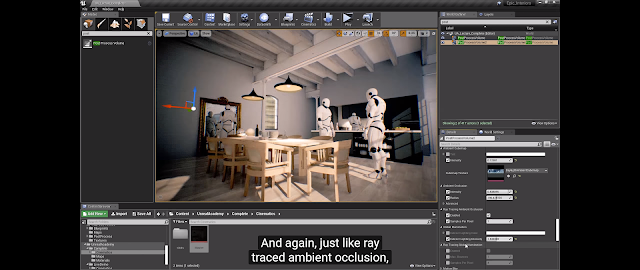
Part 2 Indirect Lighting intensity can be adjusted. Turn on ray tracing reflections.  Adjust setting depending on visualization and performance requirements. Ray tracing translucency can also be turned on. Increasing the max reflection rays will turn black objects back to translucent. Enable Ray tracing global illumination. Performance may be taking a huge hit at this point, so adjust the setting and turn off what you don't require. Post-process. can also be controlled in the sequencer Adding properties setting will give you full control within the scene. Post-process Materials Post-process materials are easy to make and just like any material can be as simple and as complicated as you like. The G-buffer contains everything you'll need for these effects. Create a material as usual and c hange the surface to post-process. This material once complete can be dragged into the post=process material array. You can combine many effects here. A useful pass is the custom depth-stencil. ...

Achieving Cinematic quality with post-process effects in UE4 - Part1

Image
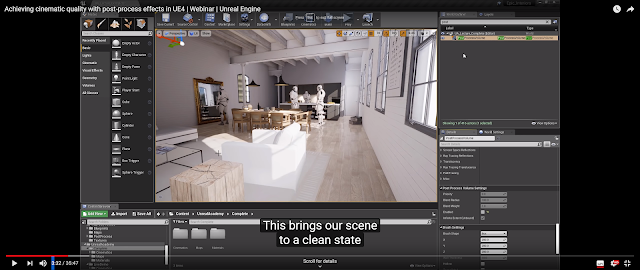
Achieving cinematic quality with post-process effects in UE4 | Webinar | Unreal Engine This excellent webinar quickly covers all the important information when creating and adjusting post-process effects in ue4. In this webinar, Technical Artist Matthew Doyle goes through the different post-process effects that can dramatically enhance the visual quality of a scene in Unreal Engine. Learn how to work with depth of field, light bloom, exposure, tone mapping, color grading, ray-traced reflections, and more. For the full video, check it out here. https://www.youtube.com/watch?v=aGsUU_bvOgw These are my highlights and quick reference guides for future projects: Turn off all the render setting in the Project Setting. Drag in a post-process volume and click enable and unbound. Camer Focus setting can be adjusted directly on the camera or in master sequencer. Convolution bloom is more realistic but is more expensive. You can manually adjust the auto exposure setting. Best done whilst facing...

UE4 White Paper Docs

Image
All the resources you'll ever need! Not only do Epic’s developers work together to create great games and engine technology, many are active contributors to leading industry and academic channels. Below is a list of materials from presentations, books and guides. To save a document file to your hard drive, right click on the link and choose “Save As.” Books and guides thumbnails click through to purchase links. https://www.unrealengine.com/en-US/resources
Image
A great post about the role of a technical artist. I have found myself coming back to this article a lot recently so have decided to repost it. I'm sure it will be useful in the future. https://www.unrealengine.com/en-US/tech-blog/jobs-in-unreal-engine---technical-artist?utm_source=launcher&utm_medium=chromium&utm_term=showcase&utm_content=TechArt&utm_campaign=communitytab&fbclid=IwAR1n-Ri8pZS88G8SHionp3fWVHH9BbHX1BUjF_gpLyIJrupLQaCal66nJj4 Understanding the Role of a Tech Artist Real-time technology is powering the world of interactive entertainment and transforming industries such as TV/film, architectural visualization, industrial design, and visual FX. It is now standard for game developers to create high quality games that render vast open worlds and for enterprise leaders to quickly deliver high-fidelity interactive experiences in real time. With the evolution and the complexity of real-time rendering across so many industries, it has never been so critica...